Introduction
Scope
To install Implicit FrontEnd AI Edition, please follow the instructions in the Implicit FrontEnd Admin guide.
Once you’ve installed Implicit FrontEnd, please proceed with the following two steps, described in this guide, to enable and configure AI functionality:
- Step 1: Should be done by the Microsoft 365 Admin – Subscribe and create Azure OpenAI resource.
- Step 2: Should be done by the CRM Admin – Configure AI settings for users.
Note: AI functionality will be visible only if you have purchased Implicit FrontEnd AI Edition.
Trademarks
Implicit, the Implicit Logo, Implicit for Outlook, Implicit for Teams, Implicit FrontEnd, Implicit FrontEnd AI Editon and combinations thereof are trademarks of Implicit Inc.
Microsoft, Microsoft Office, Microsoft Outlook, Microsoft Teams, Microsoft 365, and Windows are registered trademarks of Microsoft Corporation.
SugarCRM is a registered trademark of SugarCRM Inc.
SuiteCRM is a registered trademark of SalesAgility Ltd.
Other product names used in this publication are for identification purposes only and may be trademarks of their respective companies.
Disclaimer
The contents of this document are provided in connection with Implicit Inc. (“IMPLICIT”) and Implicit FrontEnd AI Editon product. IMPLICIT makes no representations or warranties with respect to the accuracy or completeness of the contents of this publication and reserves the right to make changes to specifications and product descriptions at any time without notice. No license, whether express, implied, arising by estoppel, or otherwise, to any intellectual property rights are granted by this publication. Except as set forth in Implicit FrontEnd License Agreement, IMPLICIT assumes no liability whatsoever, and disclaims any express or implied warranty, relating to its products including, but not limited to, the implied warranty of merchantability, fitness for a particular purpose, or infringement of any intellectual property right. IMPLICIT’s products are not designed, intended, authorized or warranted for use as components in applications intended to support or sustain life, or in any other application in which the failure of IMPLCIT’s product could create a situation where personal injury, death, or severe property or environmental damage may occur. IMPLICIT reserves the right to discontinue or make changes to its products at any time without notice.
Installation Steps
Step 1: Implicit FrontEnd Installation
Before you install and configure the AI components, please install and configure Implicit FrontEnd by following the instructions in the Implicit FrontEnd Admin guide.
Step 2: Subscribing and Creating Azure OpenAI Resource
If your organization is planning to utilize Implicit FrontEnd AI functionality, you’ll need to first subscribe to OpenAI on Azure and create an OpenAI resource.
Note: You will need an Azure account. If you don’t have an active Azure subscription, you can sign up here or start with an Azure’s free trial.
The process to create an Open AI Resource is described in details in this Microsoft article: How-to: Create and deploy an Azure OpenAI Service resource. The process consists of the following steps:
Step 2.1 Create an Azure OpenAI Resource
Login to Azure portal https://portal.azure.com

Select “Azure Open AI” and click ‘Create’. You will be prompted to enter the following information:
- Azure subscription name – Choose your Azure subscription.
- Resource Group for your OpenAI resource – Select an existing group or create a new one.
- Region
- OpenAI Service resource name: Choose a name for your resource, e.g. “Implicit FrontEnd AI”.
- Pricing tier for the resource – Select the “Basic tier”
Note: For Implicit FrontEnd AI, you’ll need to select the basic tier as a minimum. Free/Trial tier will not work.
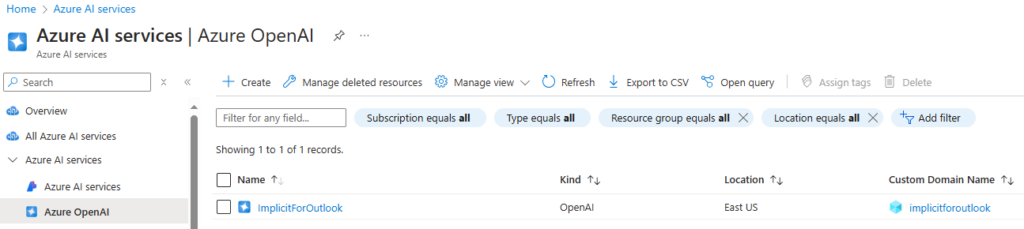
Next, you’ll be prompted to select the network security configuration based on where the users who would be accessing OpenAI reside. Please review carefully and select the option that meets your needs. Once you complete the process review your selection and create the OpenAI resource. You will see it listed under the Azure AI services:
Step 2.2 Select AI Model
Click on the resource name that you just created and open it. At the very top, click the link “Go to Azure AI foundry portal”. On the left-hand side of the Foundry portal page, under “Shared Resources”, click Deployments. This will take you to the “Model Deployments” page.
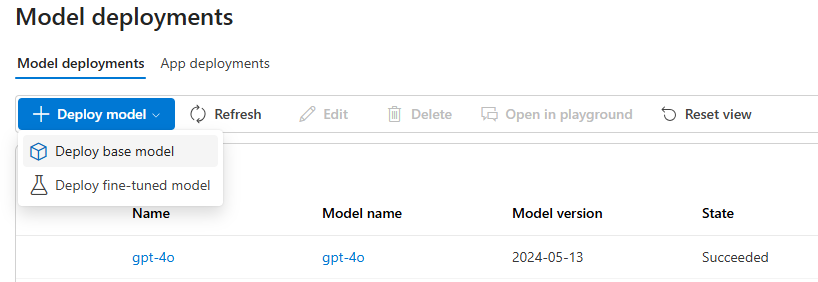
Click “+Deploy model” and select “Deploy base model”. Azure will present a list of available models. Select “gpt-4o”
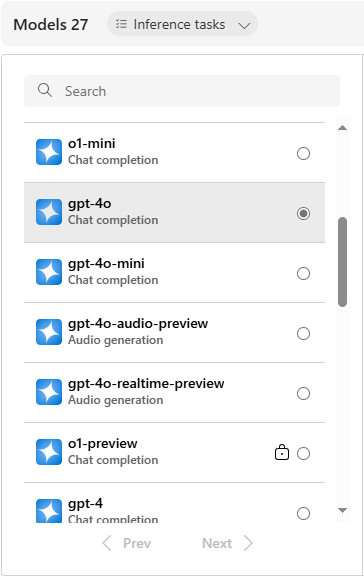
Enter a deployment name to identify the model: e.g. “gpt-4o”
When you’re done, select ‘Create’. Note that the deployment name you have given is required when you configure the OpenAI resource information in the Implicit FrontEnd desktop app.
Step 2.3 – Copy OpenAI Resource Information
Next, on the left-hand side of the Azure AI Foundry page , click “Home”. The home page gives you a summary of the AI service you created:
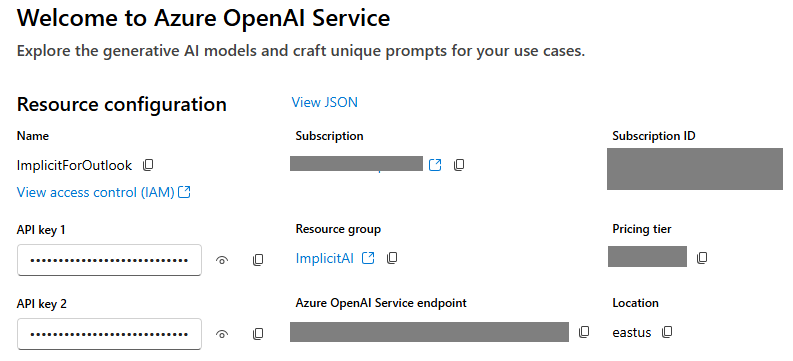
There are three key parameters that you would need to copy from this page and paste into the administration page of Implicit FrontEnd Desktop App:
- Azure OpenAI Service endpoint – Copy the URL until it ends with “azure.com”, e.g.: <your resource name.openai.azure.com>
- AI model Name – Copy the name that you have given to your AI model, e.g. “gpt-4o”
- API Key – Click the view button next to API Key 1 and copy the value of key1.
Please provide these three parameters to your CRM admin to be used when configuring AI services under the Implicit FrontEnd desktop app administration tab.
Step 3: Configure AI Settings for Users
These settings can be configured and published by CRM admins only:
- Azure OpenAI resource configuration which was created by the Microsoft 365 administrator created. See: Subscribing and Creating Azure OpenAI Resource
- Enable / Disable users from generating Email AI insights
- Enable / Disable users from generating Teams meetings AI insights
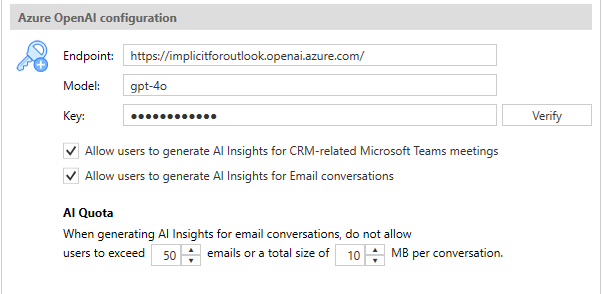
AI Insights Configuration
These settings can be configured by either the CRM admin or by users. They include:
- Automatically transcribe and generate AI insights for all new meetings with CRM contacts or leads. This setting allows you to configure Implicit FrontEnd AI to automatically set transcription for all new Teams meetings where the participants list include CRM contacts or leads without having to select it per meeting.
- Upon scheduling a new meeting and sending an invite – manually select whether that meetings should be transcribed, and AI insights should be generated.
- Automatically mark all emails included in a conversation for which AI insights are generated with a blue Implicit AI insights Outlook category
- Sharing AI Insights via CRM – Make AI Insights private or share them with a SugarCRM team SuiteCRM or security group