Introduction
Scope
This guide provides instruction on how to configure and use Implicit FrontEnd AI Insights.
For Implicit FrontEnd core functionality, please see: Implicit FrontEnd User Guide.
Overview
Implicit FrontEnd AI Editon allows you to generate AI insights for Teams meetings and Outlook emails. It integrates with Microsoft Teams, Microsoft Outlook and OpenAI service on Microsoft 365 Azure to summarize and provide functional insights into your interactions with your customers via Outlook. There are four types of AI Insights:
- AI Insights into customers’ email threads in Outlook. Create AI insight for an Outlook email conversation that you’ve had with a customer. Typically, the conversation revolves around a specific theme and can include multiple email senders and recipients over a period of time.
- AI Insights into customers’ emails in CRM Records. Create AI insights based on all the emails that were archived to a CRM record by any of the users.
- AI Insights into customers’ Meetings. Create AI insights based on transcripts of your Teams meetings with customers.
- AI Insights into Contacts and Leads CRM Information. Use AI to extract CRM information from emails and meetings and create CRM records.
Prerequisites
For users to have access to AI functionality, the following is required:
1. Your Microsoft 365 admin has subscribed to Azure OpenAI service
2. Your CRM admin has configured the AI resource in Implicit Desktop app, has enabled AI Insights and has published the configuration to all users.
Trademarks
Implicit, the Implicit Logo, Implicit for Outlook, Implicit for Teams, and Implicit FrontEnd, Implicit FrontEnd AI Editon and combinations thereof are trademarks of Implicit Inc.
Microsoft, Microsoft Office, Microsoft Outlook, Microsoft Teams, Microsoft 365, and Windows are registered trademarks of Microsoft Corporation.
SugarCRM is a registered trademark of SugarCRM Inc.
SuiteCRM is a registered trademark of SalesAgility Ltd.
Other product names used in this publication are for identification purposes only and may be trademarks of their respective companies.
Disclaimer
The contents of this document are provided in connection with Implicit Inc. (“IMPLICIT”) and Implicit FrontEnd AI Editon product. IMPLICIT makes no representations or warranties with respect to the accuracy or completeness of the contents of this publication and reserves the right to make changes to specifications and product descriptions at any time without notice. No license, whether express, implied, arising by estoppel, or otherwise, to any intellectual property rights are granted by this publication. Except as set forth in Implicit FrontEnd License Agreement, IMPLICIT assumes no liability whatsoever, and disclaims any express or implied warranty, relating to its products including, but not limited to, the implied warranty of merchantability, fitness for a particular purpose, or infringement of any intellectual property right. IMPLICIT’s products are not designed, intended, authorized or warranted for use as components in applications intended to support or sustain life, or in any other application in which the failure of IMPLCIT’s product could create a situation where personal injury, death, or severe property or environmental damage may occur. IMPLICIT reserves the right to discontinue or make changes to its products at any time without notice.
AI Insights Settings
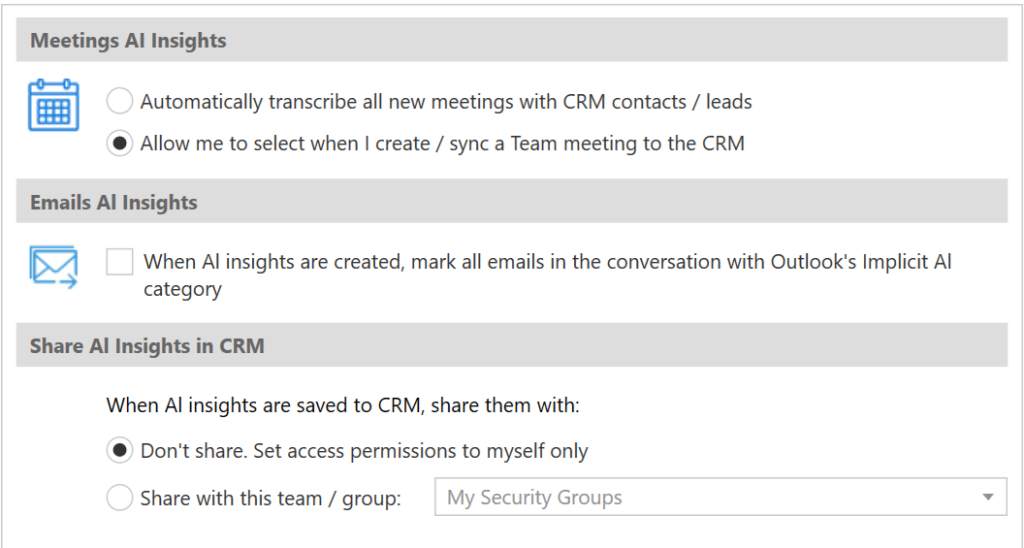
To configure AI Insights settings, click Options and select “AI Insights Tab”.
Note: This tab is enabled only if OpenAI service is enabled and has been configured in your environment and your CRM admin has given users permission to use AI insights.
 Meetings AI Settings
You have the option to select the default behavior of which Teams meetings should be transcribed and analyzed by AI:
- All meetings that include CRM contacts or leads as participants should be automatically transcribed and AI insights should be generated
- You will have the option to turn on transcription and AI insights at the time of creating the meeting invite
Email AI Settings
You have the option of marking all emails in an email conversation with an Implicit AI category when AI insights were generated for that conversation.
When AI insights are saved in the CRM, they are always assigned to you. You have the option of sharing them with a specific team/security group. Only members of the team / group you specify will be able to access to AI insights that you save in the CRM.
Emails AI Insights
To create AI Insights for Outlook threads, select an email from a contact or lead, and on the side-panel click on the ‘Create AI Insights’ button.

You’ll notice that the button’s label changes to ‘Creating AI Insights’. The process may take some time depending on the number of emails in the selected conversation. During that time, you may continue working in Outlook. When the AI Insights are created and ready to be viewed, you will be notified in the side-panel, and the button will turn into ‘View AI Insights’.
Viewing All Email AI Insights for an Account
To view all AI insights for Outlook conversations related to the selected account, click the ‘AI Search’ button on the side-panel.

Implicit will present a list of Email conversations related to the CRM module and record that you select.
AI Insights for CRM Records
To create AI Insights for CRM Records, select an email from a contact or lead, and on the side-panel click on the ‘AI’ button next to record.

This will trigger the creation of AI Insights for all the emails stored in the CRM and related to this record. Once the process is done, the icon will change and show ‘AI View’.

Email AI Insights Report
Clicking the view button will open the Email AI Insights window:
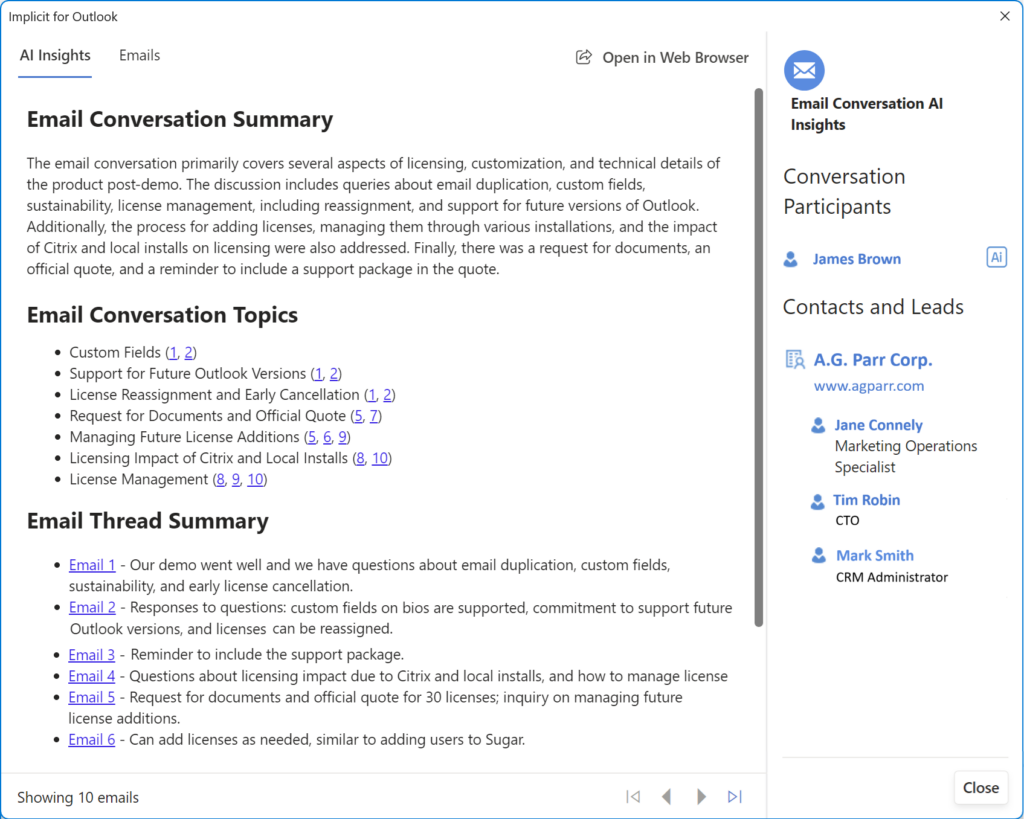 The Email AI Insight includes two tabs:
AI Insights Tab:
- Email Conversation Summary – A one-paragraph summary of the complete email conversation.
- List of key topics that were discussed. Each topic contains a list of references with email numbers. Clicking the email reference takes you to the original email where that topic was discussed.
- Email Thread Summary – A short one-sentence summary of each email
- Contact and Leads – Conversation participants who are already defined in the CRM as contacts or leads, organized by accounts or companies.
- Other Conversation Participants – A list of other email senders who are not currently defined in the CRM (their email addresses were not found). Those participants for whom AI is able to identify an email signature, show up with an AI button next to them which allows you to extract their contact information and generate a contact or a lead record directly in the CRM.
Emails Tab:
A sequential list of emails that were included in the conversation. This is extremely useful if you are looking for emails where a certain topic was discussed. For example, if you are looking for emails where you discussed pricing with a customer, clicking on any of the reference email numbers next to the topic will take you directly to that email.
Meetings AI Insights
Meeting AI Insights enables you to:
- Review AI insights of your customer meetings including meeting sections, key topics, discussion points and follow up action items related to accounts, opportunities, quote etc.
- Review meeting sections and topics. By breaking down the discussion into sections and presenting a summary view of each section topic and discussion, Implicit allows you to review the meeting notes at a glance, and come up to speed on what was discussed, by whom and what action items should be taken.
- Save in CRM and share with your colleagues and supervisors. Meetings AI insights are saved in the CRM and can be shared with other users, so user who have not attended the meeting can quickly and effectively review what was discussed and what actions items should be followed up on.
- Leverage CRM information as context from the meeting. By leveraging the history of the account from the CRM as context for the meeting, Implicit ensures high quality AI analysis.
- Review list of action items and generate follow up tasks in CRM.
- Meetings AI Insights include the following:
- Minutes of Meeting / Overview
- List of key discussion topics
- A short summary of each of the topics that were discussed
- A list of follow up tasks that can be converted into CRM tasks
Selecting Meetings to generate AI Insights
The process starts when you send a meeting invite from Outlook and select a Teams meeting. By clicking the “Implicit FrontEnd” button on the meeting invite compose window, the meeting side panel is displayed:
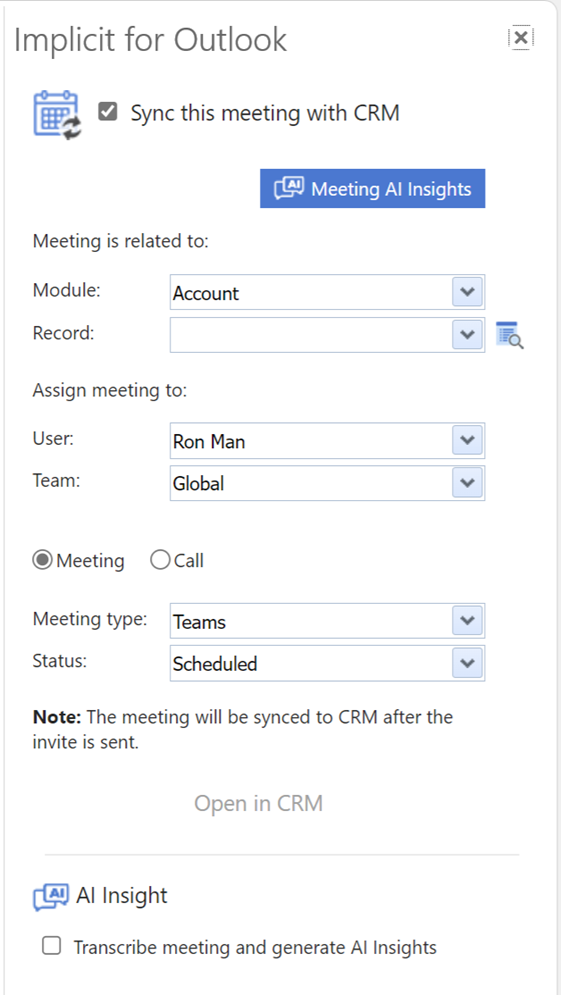
The meeting side panel allows you to select the following:
- By default, ‘Sync’ this meeting with CRM’ is selected
- You can choose the module and the record that this meeting should be related to. You can also leave it empty, in which case the meeting will be synced and would show up in your CRM calendar, but it would not be related to any CRM record.
- Select the user (by default – yourself as organizer) and the Team or security group that the meeting would be assigned to.
- Meeting Type – This list of meeting types is dynamically brought from the CRM and allows you to specify the same types in Outlook.
- Status – Same as in CRM.
- ‘Transcribe and Generate AI Insights’ – will be off by default if you chose to manually select meetings to transcribe and generate AI insights, or on if you selected the automatic mode. Please see: AI Insights settings
Tracking Online Meetings and Generating AI Insights
After the meeting has been marked for AI Insights, Implicit continues to track the meetings until it detects that the meeting was held and the transcripts were ready. It retrieves the transcripts from Microsoft Teams and runs them through OpenAI to generate the summary and the AI insights. It then saves the AI insights as a note attached to the meetings record in the CRM. If you have configured Implicit AI Insights to prompt you to manually select whether a meeting should be transcribed and processed by AI, you will be prompted to do so by the following dialog:
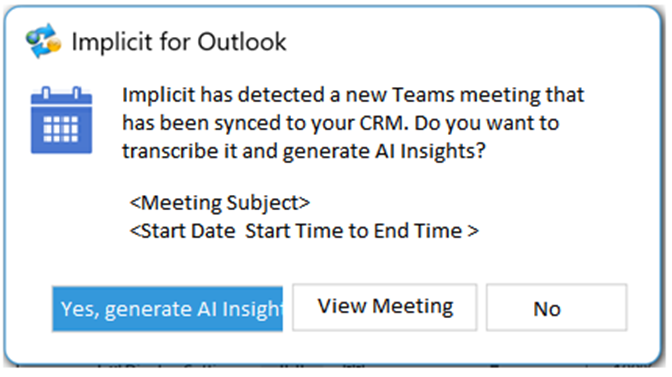
If you have configured Implicit AI Insights to automatically transcribe and generate AI insights for all meetings with CRM contacts or leads, you will not be promoted, and such meetings will be automatically processed.
Searching / Viewing Meetings AI Insights
To view the AI insights, click the ‘AI Search’ button on the side-panel and select ‘Search Meetings’. Implicit will present a list of meetings that are related to the CRM module and record that you select. You may also search for meetings based on the subject of the meeting, its status, start and end date and the assigned user.
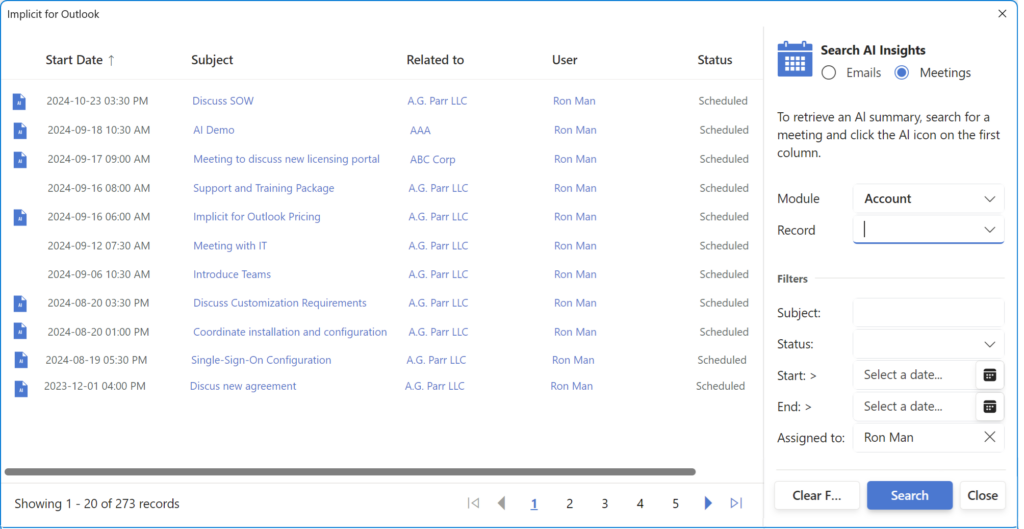
Set the search filters to match your search. By default, it will select the account related to the email selected in Outlook if the contact and account is known in the CRM. Meetings that contain AI Insights will be displayed with a blue AI icon on the first left-hand column. Click the AI icon to open the meeting AI insights.
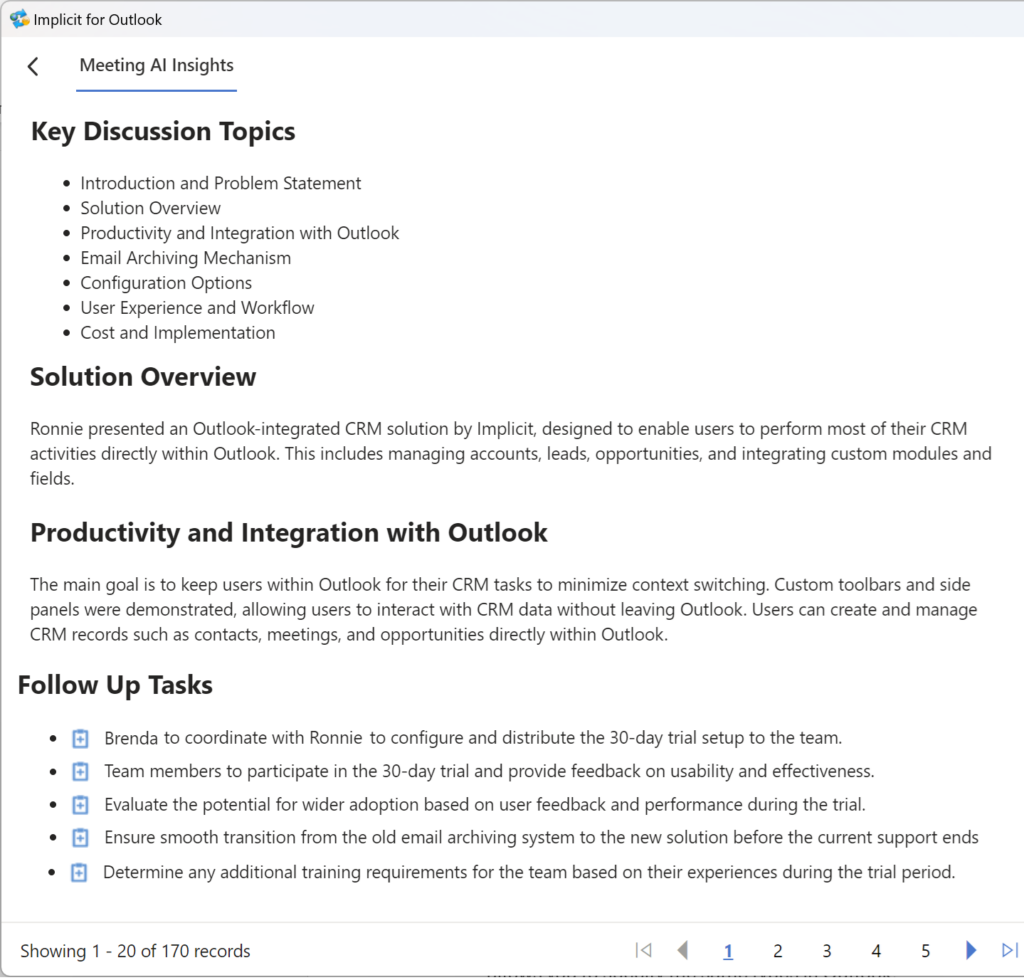 As you can see from the above screenshot, the meeting AI Insight includes the following:
- Minutes of Meeting / Overview
- List of key discussion topics
- A short summary of each of the topics that were discussed
- A list of follow up tasks that can be converted into CRM tasks
Follow Up Tasks
To convert any of the follow up tasks to an actual CRM task, click the corresponding icon. Implicit will generate a new task, populate it with the content that AI generated and allow you to edit the new task before saving it to the CRM.
Viewing all Meetings AI Insights for an Account
To view all AI insights for Outlook conversations related to the selected account, click the ‘AI Search’ button on the side-panel.

Implicit will present a list of Meetings AI Insights related to the account you selected.
Contacts / Leads AI Insights
When you receive an email from an unknown prospect who does not have a CRM record, you will be prompted with the following screen to create an account, contact or a lead record.

Click the AI insight button, to extract the account and contact information from the email and present the information about the contact and the account in the side panel. You can then create CRM records prepopulated with this information.
